How does an XSLT processor identify the specific nodes in an XML document to which a particular transformation rule should be applied?
The processor matches nodes using XPath expressions within templates.
The stylesheet element directs the processor to specific XML sections.
Named templates explicitly call processing for designated elements.
The processor targets nodes based on declared namespace prefixes.
In XSLT, the processor applies transformation rules by matching nodes using XPath expressions inside
“Templates define the rule, and XPath expressions determine which nodes they apply to.”
This is the foundational mechanism by which XSLT processes XML data.
Why the others are incorrect:
B. The
C.
D. Namespace prefixes are used within XPath, but node matching is based on XPath.
What is the purpose of a namespace in the context of a stylesheet?
Provides elements you can use in your code.
Indicates the start and end tag names to output.
Restricts the data the processor can access.
Controls the filename of the transformed result.
In the context of a stylesheet, particularly within Workday's Document Transformation system where XSLT (Extensible Stylesheet Language Transformations) is commonly used, a namespace serves a critical role in defining the scope and identity of elements and attributes. The correct answer, as aligned with Workday’s integration practices and standard XSLT principles, is that a namespace "provides elements you can use in your code." Here’s a detailed explanation:
Definition and Purpose of a Namespace:
A namespace in an XML-based stylesheet (like XSLT) is a mechanism to avoid naming conflicts by grouping elements and attributes under a unique identifier, typically a URI (Uniform Resource Identifier). This allows different vocabularies or schemas to coexist within the same document or transformation process without ambiguity.
In XSLT, namespaces are declared in the stylesheet using the xmlns attribute (e.g., xmlns:xsl="http://www.w3.org/1999/XSL/Transform " for XSLT itself). These declarations define the set of elements and functions available for use in the stylesheet, such as
For example, when transforming Workday data (which uses its own XML schema), a namespace might be defined to reference Workday-specific elements, enabling the stylesheet to correctly identify and manipulate those elements.
Application in Workday Context:
In Workday’s Document Transformation integrations, namespaces are essential when processing XML data from Workday (e.g., Core Connector outputs) or external systems. The namespace ensures that the XSLT processor recognizes the correct elements from the source XML and applies the transformation rules appropriately.
Without a namespace, the processor might misinterpret elements with the same name but different meanings (e.g.,
Why Other Options Are Incorrect:
B. Indicates the start and end tag names to output: This is incorrect because namespaces do not dictate the structure (start and end tags) of the output. That is determined by the XSLT template rules and output instructions (e.g.,
C. Restricts the data the processor can access: While namespaces help distinguish between different sets of elements, they do not inherently restrict data access. Restrictions are more a function of security settings or XPath expressions within the stylesheet, not the namespace itself.
D. Controls the filename of the transformed result: Namespaces have no bearing on the filename of the output. In Workday, the filename of a transformed result is typically managed by the Integration Attachment Service or delivery settings (e.g., SFTP or email configurations), not the stylesheet’s namespace.
Practical Example:
Suppose you’re transforming a Workday XML file containing employee data into a custom format. The stylesheet might include:
Here, the wd namespace provides access to Workday-specific elements like
Workday Pro Integrations Study Guide References:
Workday Integration System Fundamentals: Explains XML and XSLT basics, including the role of namespaces in identifying elements within stylesheets.
Document Transformation Module: Highlights how namespaces are used in XSLT to process Workday XML data, emphasizing their role in providing a vocabulary for transformation logic (e.g., "Understanding XSLT Namespaces").
Core Connectors and Document Transformation Course Manual: Includes examples of XSLT stylesheets where namespaces are declared to handle Workday-specific schemas, reinforcing that they provide usable elements.
Workday Community Documentation: Notes that namespaces are critical for ensuring compatibility between Workday’s XML output and external system requirements in transformation scenarios.
Refer to the following scenario to answer the question below. Your integration has the following runs in the integration events report (Date format of MM/DD/YYYY):
Run #1
• Core Connector: Worker Integration System was launched on May 15, 2024 at 3:00:00 AM
• As of Entry Moment: 05/15/2024 3:00:00 AM
• Effective Date: 05/15/2024
• Last Successful As of Entry Moment: 05/01/2024 3:00:00 AM
• Last Successful Effective Date: 05/01/2024
Run #2
• Core Connector: Worker Integration System was launched on May 31, 2024 at 3:00:00 AM
• As of Entry Moment: 05/31/2024 3:00:00 AM
• Effective Date: 05/31/2024
• Last Successful As of Entry Moment: 05/15/2024 3:00:00 AM
• Last Successful Effective Date: 05/15/2024
On May 13, 2024 Brian Hill receives a salary increase. The new salary amount is set to $90,000.00 with an effective date of May 22, 2024. Which of these runs will include Brian Hill's compensation change?
Brian Hill will only be included in the first integration run.
Brian Hill will be included in both integration runs.
Brian Hill will only be included the second integration run.
Brian Hill will be excluded from both integration runs.
The scenario involves a Core Connector: Worker integration with two runs detailed in the integration events report. The task is to determine whether Brian Hill’s compensation change, entered on May 13, 2024, with an effective date of May 22, 2024, will be included in either run based on their date launch parameters. Let’s analyze each run against the change details.
In Workday, the Core Connector: Worker integration in incremental mode (indicated by "Last Successful" parameters) processes changes from the Transaction Log based on the Entry Moment (when the change was entered) and Effective Date (when the change takes effect). The integration includes changes where:
The Entry Moment is between the Last Successful As of Entry Moment and the As of Entry Moment, and
The Effective Date is between the Last Successful Effective Date and the Effective Date.
Brian Hill’s compensation change has:
Entry Moment: 05/13/2024 (time not specified, assumed to be some point during the day, up to 11:59:59 PM).
Effective Date: 05/22/2024.
Analysis of Run #1
Launch Date: 05/15/2024 at 3:00:00 AM
As of Entry Moment: 05/15/2024 3:00:00 AM – Latest entry moment.
Effective Date: 05/15/2024 – Latest effective date.
Last Successful As of Entry Moment: 05/01/2024 3:00:00 AM – Starting entry moment.
Last Successful Effective Date: 05/01/2024 – Starting effective date.
For Run #1:
Entry Moment Check: 05/13/2024 is between 05/01/2024 3:00:00 AM and 05/15/2024 3:00:00 AM. This condition is met.
Effective Date Check: 05/22/2024 is after 05/15/2024 (Effective Date). This condition is not met.
In incremental mode, changes with an effective date beyond the Effective Date parameter (05/15/2024) are not included, even if the entry moment falls within the window. Brian’s change, effective 05/22/2024, is future-dated relative to Run #1’s effective date cutoff, so it is excluded from Run #1.
Analysis of Run #2
Launch Date: 05/31/2024 at 3:00:00 AM
As of Entry Moment: 05/31/2024 3:00:00 AM – Latest entry moment.
Effective Date: 05/31/2024 – Latest effective date.
Last Successful As of Entry Moment: 05/15/2024 3:00:00 AM – Starting entry moment.
Last Successful Effective Date: 05/15/2024 – Starting effective date.
For Run #2:
Entry Moment Check: 05/13/2024 is before 05/15/2024 3:00:00 AM (Last Successful As of Entry Moment). This condition is not met in a strict sense.
Effective Date Check: 05/22/2024 is between 05/15/2024 and 05/31/2024. This condition is met.
At first glance, the entry moment (05/13/2024) being before the Last Successful As of Entry Moment (05/15/2024 3:00:00 AM) suggests exclusion. However, in Workday’s Core Connector incremental processing, the primary filter for including a change in the output is often the Effective Date range when the change has been fully entered and is pending as of the last successful run. Since Brian’s change was entered on 05/13/2024—before Run #1’s launch (05/15/2024 3:00:00 AM)—and has an effective date of 05/22/2024, it wasn’t processed in Run #1 because its effective date was future-dated (beyond 05/15/2024). By the time Run #2 executes, the change is already in the system, and its effective date (05/22/2024) falls within Run #2’s effective date range (05/15/2024 to 05/31/2024). Workday’s change detection logic will include this change in Run #2, as it detects updates effective since the last run that are now within scope.
Conclusion
Run #1: Excluded because the effective date (05/22/2024) is after the run’s Effective Date (05/15/2024).
Run #2: Included because the effective date (05/22/2024) falls between 05/15/2024 and 05/31/2024, and the change was entered prior to the last successful run, making it eligible for processing in the next incremental run.
Thus, C. Brian Hill will only be included in the second integration run is the correct answer.
Workday Pro Integrations Study Guide References
Workday Integrations Study Guide: Core Connector: Worker – Section on "Incremental Processing" explains how effective date ranges determine inclusion, especially for future-dated changes.
Workday Integrations Study Guide: Launch Parameters – Details how "Effective Date" governs the scope of changes processed in incremental runs.
Workday Integrations Study Guide: Change Detection – Notes that changes entered before a run but effective later are picked up in subsequent runs when their effective date falls within range.
How do you initially upload the XSLT file to a Document Transformation integration system?
From the Related Action on the Document Transformation, select Configure Integration Attachment Service.
From the Related Action on the Document Transformation, select Configure Integration Attributes.
In the Global Workday Search bar, run the Edit Integration Attachment Service task.
In the Global Workday Search bar, run the Edit Integration Service Attachment task.
To upload an XSLT file to a Document Transformation integration system, you use the Configure Integration Attachment Service.
As per Workday documentation:
“The Configure Integration Attachment Service option on the Related Actions menu allows you to attach and manage XSLT files or other transformation documents used in Document Transformation integrations.”
This is the initial and correct method to upload the XSLT used for transforming incoming or outgoing XML.
Why the others are incorrect:
B. Configure Integration Attributes configures integration behavior, not attachments.
C and D reference invalid or misnamed tasks; they are not valid Workday tasks for XSLT upload.
Which features must all XSLT files contain to be considered valid?
A template, a prefix, and a header
A root element, namespace, and at least one transformation
A header, a footer, and a namespace
A root element, namespace, and at least one template
A valid XSLT file must include the following key components:
Root Element:
Namespace Declaration: Usually xmlns:xsl="http://www.w3.org/1999/XSL/Transform "
At Least One
From W3C and Workday documentation:
“A valid XSLT file must contain a stylesheet root element, a namespace, and at least one template to be considered executable.”
Why others are incorrect:
A. Prefix and header are not structural requirements.
B. "Transformation" is vague; it's the template that implements it.
C. Headers and footers are not required or defined elements in XSLT.
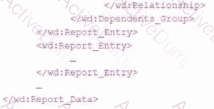
The following XML code was generated through a RaaS that will be used in an EIB.
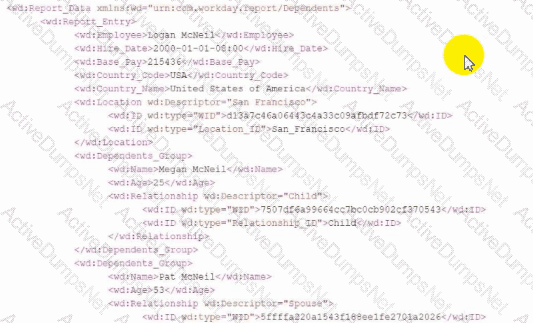
Within a template that matches on wd:Report_Entry, what XPath expression do you use to select the value of the Relationship_ID element?
wd:Dependents_Group/wd:Relationship/wd:ID/wd:type='Relationship_ID'
wd:Dependents_Group/wd:Relationship/wd:ID
./wd:Dependents_Group/wd:Relationship/wd:ID
The XML fragment shown follows the Report‑as‑a‑Service (RaaS) structure typical for Workday custom report output:
Inside each
wd:Dependents_Group
→ wd:Relationship
→ wd:ID (wd:type="Relationship_ID")
When writing the template:
XSLT uses a relative XPath (starting with ./) to navigate from the matched node.
Therefore, the correct XPath should be:
/wd:Dependents_Group/wd:Relationship/wd:ID
That expression selects the wd:ID element so you can then test/extract where wd:type="Relationship_ID".
Why the other options are incorrect:
Option
Why Incorrect
A & B
These use an equality test incorrectly inside the XPath expression — they would not return the node value and are syntactically invalid for value extraction.
C
Missing ./ — would still work in many cases, but Workday XSLT best practice is to use relative paths when inside a match.
Workday Pro Integration guidance for RaaS/XSLT stresses:
Always scope node selection relative to the current context tree using prefix‑qualified XPath expressions.
Refer to the following scenario to answer the question below.
You need to configure a Core Connector: Candidate Outbound integration for your vendor. The connector requires the data initialization service (DIS).
The vendor needs the file to only include candidates that undergo a candidate assessment event in Workday.
How do you accomplish this?
Configure the integration services to only include candidates with assessments.
Set the integration transaction log to subscribe to specific transaction types.
Make the Candidate Assessment field required in integration field attributes.
Create an integration map to output values for candidates with assessments.
The scenario requires configuring a Core Connector: Candidate Outbound integration with the Data Initialization Service (DIS) to include only candidates who have undergone a candidate assessment event in Workday. Core Connectors are event-driven integrations that rely on business process transactions or specific data changes to trigger data extraction. Let’s analyze how to meet this requirement:
Understanding Core Connector and DIS:The Core Connector: Candidate Outbound integration extracts candidate data based on predefined services and events. The Data Initialization Service (DIS) ensures the initial dataset is populated, but ongoing updates depend on configured integration services that define which candidates to include based on specific events or conditions.
Candidate Assessment Event:In Workday, a "candidate assessment event" typically refers to a step in the recruiting business process where a candidate completes an assessment. The requirement to filter for candidates with this event suggests limiting the dataset to those who triggered an assessment-related transaction.
Integration Services:In Core Connectors, integration services determine the scope of data extracted by subscribing to specific business events or conditions. For this scenario, you can configure the integration services to monitor the "Candidate Assessment" event (or a related business process step) and include only candidates who have completed it. This is done by selecting or customizing the appropriate service within the Core Connector configuration to filter the candidate population.
Option Analysis:
A. Configure the integration services to only include candidates with assessments: Correct. This involves adjusting the integration services in the Core Connector to filter candidates based on the assessment event, ensuring only relevant candidates are included in the output file.
B. Set the integration transaction log to subscribe to specific transaction types: Incorrect. The integration transaction log tracks processed transactions for auditing but doesn’t control which candidates are included in the output. Subscription to events is handled via integration services, not the log.
C. Make the Candidate Assessment field required in integration field attributes: Incorrect. Integration field attributes define field-level properties (e.g., formatting or mapping), not the population of candidates included. Making a field "required" doesn’t filter the dataset.
D. Create an integration map to output values for candidates with assessments: Incorrect. Integration maps transform or map field values (e.g., converting "United States" to "USA") but don’t filter the population of candidates included in the extract. Filtering is a service-level configuration.
Implementation:
Edit the Core Connector: Candidate Outbound integration.
In the Integration Services section, select or configure a service tied to the "Candidate Assessment" event (e.g., a business process completion event).
Ensure the service filters the candidate population to those with an assessment event recorded.
Test the integration to verify only candidates with assessments are extracted.
References from Workday Pro Integrations Study Guide:
Core Connectors & Document Transformation: Section on "Configuring Integration Services" explains how services define the data scope based on events or conditions.
Integration System Fundamentals
Refer to the following scenario to answer the question below.
You need to configure a Core Connector: Candidate Outbound integration for your vendor. The connector requires the data initialization service (DIS).
The vendor needs a value on the output file which contains the average number of jobs a candidate applied to. This value is not delivered by Workday so you have identified that you will need to build a calculated field to generate this value.
What steps do you follow to output the calculated field?
Configure a custom field override service to output the calculation.
Configure integration attributes to output the calculation.
Configure integration field attributes to output the calculation.
Configure integration field overrides to output the calculation.
The scenario involves a Core Connector: Candidate Outbound integration requiring a calculated field for the average number of jobs a candidate applied to, which isn’t a delivered Workday field. The task is to output this calculated field in the integration file. Core Connectors in Workday use predefined templates but allow customization through various configuration options. Let’s evaluate the steps:
Context:
Core Connector: Candidate Outbound uses the Data Initialization Service (DIS) to extract candidate data.
A calculated field must be created (e.g., averaging the "Number of Job Applications" field across a candidate’s records).
This value needs to be included in the output file sent to the vendor.
Integration Field Overrides:In Core Connectors, calculated fields are typically incorporated into the output by defining integration field overrides. This feature allows you to map a calculated field to a specific field in the connector’s output structure, overriding the default delivered value (or adding a new field). The calculated field is built separately (e.g., in Report Writer or Calculated Fields) and then referenced in the integration configuration.
Option Analysis:
A. Configure a custom field override service to output the calculation: Incorrect. There’s no "custom field override service" in Workday Core Connectors. This might confuse with integration field overrides, but it’s not a distinct service.
B. Configure integration attributes to output the calculation: Incorrect. Integration attributes define metadata or settings for the integration (e.g., file name, delivery method), not specific field mappings for output data.
C. Configure integration field attributes to output the calculation: Incorrect. "Integration field attributes" isn’t a precise Workday term for this purpose; it may confuse with field-level settings, but field overrides are the correct mechanism.
D. Configure integration field overrides to output the calculation: Correct. This is the standard method in Core Connectors to include calculated fields in the output file by overriding or adding to the delivered field structure.
Implementation:
Create a calculated field (e.g., "Average Job Applications") using functions like Arithmetic Calculation to average job application counts.
In the Core Connector configuration, navigate to the Integration Field Overrides section.
Define a new field or override an existing one, mapping it to the calculated field.
Test the integration to ensure the calculated value appears in the output file.
References from Workday Pro Integrations Study Guide:
Core Connectors & Document Transformation: Section on "Configuring Integration Field Overrides" explains mapping calculated fields to output files.
Integration System Fundamentals: Details how Core Connectors extend delivered functionality with custom calculations.
A vendor needs to create a Date Difference calculated field. However, the two dates needed for that calculation are on two separate business objects.
What additional calculated field do you need to create that Date Difference calculated field?
Lookup Related Value
Build Date
Lookup Date Rollup
Lookup Value as of Date
When creating a Date Difference calculated field in Workday, both dates must exist on the same business object. If they are on different business objects, you need to first bring the second date onto the primary object. To do that, you use a:
Lookup Related Value calculated field — this allows you to retrieve a field (like a date) from a related business object, so it can then be used in further calculations.
Example scenario:
You want to subtract Hire Date (on the Worker object) from Dependent’s Birth Date (on the Dependent object).
These are on different objects → use Lookup Related Value to pull the second date into the current object context.
Then, create the Date Difference using both dates on the same object.
Why other options are incorrect:
B. Build Date creates a synthetic date, not for bridging objects.
C. Lookup Date Rollup rolls up values across multiple related objects, not typically used for 1-to-1 value bridging.
D. Lookup Value as of Date is used for time-sensitive lookups (e.g., point-in-time values), not structural bridging.
Refer to the scenario. You are implementing a Core Connector: Worker integration to send employee data to a third-party active employee directory. The external vendor requires the following:
The Employee's Active Directory User Principal Name.
A mapping from Worker Type values to external worker type codes.
A specific filename format that includes a timestamp and sequence number.
You also need to ensure the document transformation occurs before the file is delivered to the endpoint. You must include an Employee’s Active Directory User Principal Name (generated by a Calculated Field).
How do you ensure this field is pulled into the output?
Configure an integration map.
Configure an integration field override.
Configure an integration field attribute.
Configure an integration attribute.
To surface a Calculated Field in a Core Connector: Worker (CCW) outbound, you use an Integration Field Override to substitute the connector’s default source with your calculated value. An integration map (Option A) is intended to translate or normalize code values (for example, mapping internal Worker Type codes to the vendor’s codes), not to replace the source of a field. Integration attributes (Option D) and integration field attributes (Option C) manage connector behavior and attributes, but they do not replace a field’s data source with a calculated field. Therefore, the correct method to “pull” a calculated field into the CCW output is an Integration Field Override (Option B).
Why the other elements in the scenario matter (and how they’re handled) — with exact extracts from your materials:
Mapping Worker Type to external codes → Integration Maps (supports, but not the asked action):Your deployment guides call out maintaining and using Integration System Maps for code translations. This is exactly where you’d map “Worker Type” to the external system’s codes, but it is not how you inject a calculated field into the payload.
“Maintenance of Integration System Maps”
“WORKDAY SETUP – NON STATIC MAPS” and “WORKDAY SETUP – STATIC MAPS” (table of contents for configuration of maps)
Filename requires timestamp/sequence number → Sequence Generator (supports the scenario):Your Time Tracking/PECI deployment guide explicitly includes a Sequence Generator configuration that’s used with certified connectors to build compliant, unique file names (often with timestamps and/or sequence numbers) before delivery.
“3.6 Sequence Generator” (configuration item for certified integrations used in file naming)
Transformation before delivery → Standard integration flow (transform then deliver):The same deployment materials describe document/file delivery mechanics (for example, SFTP), which occur after the integration produces/transforms the document. This supports the scenario requirement that transformation happens prior to transmission.
“4. FILE DELIVERY SERVICE … 4.4 SFTP Configuration” (document delivery occurs after the integration generates/transforms the output)
Security posture for integrations (context):For outbound/system users and secure delivery, the Workday Authentication & Security guide documents integration-appropriate authentication (e.g., X.509) and general integration security steps — relevant background for productionizing CCW but not directly affecting how to bring a calculated field into the payload.
“X509 Recommended for web services users and integrations that use an integration system user account.”
Putting it all together for the scenario:
Use Integration Field Override to point the CCW field to your Calculated Field for UPN → (Correct answer: B).
Use Integration Maps to translate Worker Type to the vendor’s codes (supports the mapping requirement).
Configure filename rules via Sequence Generator to include timestamp and sequence in the produced file name (supports the file-naming requirement).
Ensure the document transformation runs as part of the integration generation step and then deliver via SFTP (file delivery service).
References (Workday Pro: Integrations-aligned materials):
GPC_PECI_TimeTracking_DeploymentGuide_CloudPay.pdf — Sections “3.6 Sequence Generator” and “4. File Delivery Service” (delivery occurs after file generation/transform).
GPC_PECI_DeploymentGuide_CloudPay_2.9.pdf — Map configuration sections (“WORKDAY SETUP – NON STATIC MAPS”, “WORKDAY SETUP – STATIC MAPS”).
GPC_PECI_UserGuide_CloudPay_2.1.1.pdf — “Maintenance of Integration System Maps.”
Admin-Guide-Authentication-and-Security.pdf — Integration security notes, including X.509 recommendation for integrations.
You are configuring integration security for a Core Connector integration system. How do you find the web service operation used by the connector template?
It is displayed when selecting a Core Connector Template to build an integration system
Run the integration system and view the web service request in the messages audit
View the SOAP API Reference on Workday Community
Run the Integration Template Catalog report in the tenant
When setting up security for a Core Connector integration system in Workday, you need to know which web service operation the connector template uses. The best way is to run the "Integration Template Catalog report" within your Workday tenant. This report lists all integration templates and should include details about the web service operations they use, making it easy to configure security.
Why This Matters
This method is efficient because it lets you find the information before running the system, which is crucial for setting up permissions correctly. It's surprising that such a specific report exists, as it simplifies a task that could otherwise involve running the system or guessing from API references.
How It Works
Select the report in your Workday tenant to see a list of all Core Connector templates.
Look for the template you're using and find the associated web service operation listed in the report.
Use this information to set up the right security permissions for your integration.
For more details, check out resources like Workday Core Connectors or Workday Integrations.
Refer to the following XML to answer the question below.
You are an integration developer and need to write XSLT to transform the output of an EIB which is using a web service enabled report to output worker data along with their dependents. You currently have a template which matches on wd:Report_Data/wd:Report_Entry for creating a record from each report entry.
Within the template which matches on wd:Report_Entry you would like to conditionally process the wd:Dependents_Group elements by using an
What XPath syntax would be used as the select for the apply templates so as to iterate over only the wd:Dependents_Group elements where the dependent relationship is Child?
wd:Dependents_Group[@wd:Relationship='Child']
wd:Dependents_Group[wd:Relationship='Child']
wd:Dependents_Group/wd:Relationship='Child'
wd:Dependents_Group/@wd:Relationship='Child'
In Workday integrations, XSLT (Extensible Stylesheet Language Transformations) is commonly used to transform XML data, such as the output from an Enterprise Interface Builder (EIB) or a web service-enabled report, into a format suitable for third-party systems. In this scenario, you are tasked with writing XSLT to process the wd:Dependents_Group elements within a report output to iterate only over those where the dependent relationship is "Child." The correct XPath syntax for the select attribute of an
Here’s why option B is correct:
XPath Syntax Explanation: In XPath, square brackets [ ] are used to specify predicates or conditions to filter elements. The condition wd:Relationship='Child' checks if the wd:Relationship element (or attribute, depending on the XML structure) has the value "Child." When applied to wd:Dependents_Group, the expression wd:Dependents_Group[wd:Relationship='Child'] selects only those wd:Dependents_Group elements that contain a wd:Relationship child element with the value "Child."
Context in XSLT: Within an
XML Structure Alignment: Based on the provided XML snippet, wd:Dependents_Group likely contains child elements or attributes, including wd:Relationship. The correct XPath assumes wd:Relationship is an element (not an attribute), as is common in Workday XML structures. Therefore, wd:Dependents_Group[wd:Relationship='Child'] is the appropriate syntax to filter and iterate over the desired elements.
Why not the other options?
A. wd:Dependents_Group[@wd:Relationship='Child']: This syntax uses @ to indicate that wd:Relationship is an attribute of wd:Dependents_Group, not an element. If wd:Relationship is not defined as an attribute in the XML (as is typical in Workday’s XML structure, where it’s often an element), this would result in no matches, making it incorrect.
C. wd:Dependents_Group/wd:Relationship='Child': This is not a valid XPath expression for a predicate. It attempts to navigate to wd:Relationship as a child but does not use square brackets [ ] to create a filtering condition. This would be interpreted as selecting wd:Relationship elements under wd:Dependents_Group, but it wouldn’t filter based on the value "Child" correctly within an
D. wd:Dependents_Group/@wd:Relationship='Child': Similar to option A, this assumes wd:Relationship is an attribute, which may not match the XML structure. Additionally, it lacks the predicate structure [ ], making it invalid for filtering in this context.
To implement this in XSLT:
You would write an
This approach ensures the XSLT transformation aligns with Workday’s XML structure and integration requirements for processing worker data and dependents in an EIB or web service-enabled report.
Workday Pro Integrations Study Guide: Section on "XSLT Transformations for Workday Integrations" – Details the use of XPath in XSLT for filtering XML elements, including predicates for conditional processing.
Workday EIB and Web Services Guide: Chapter on "XML and XSLT for Report Data" – Explains the structure of Workday XML (e.g., wd:Dependents_Group, wd:Relationship) and how to use XPath to navigate and filter data.
Workday Reporting and Analytics Guide: Section on "Web Service-Enabled Reports" – Covers integrating report outputs with XSLT for transformations, including examples of filtering elements based on values.
Refer to the following scenario to answer the question below.
You have configured a Core Connector: Worker integration, which utilizes the following basic configuration:
• Integration field attributes are configured to output the Position Title and Business Title fields from the Position Data section.
• Integration Population Eligibility uses the field Is Manager which returns true if the worker holds a manager role.
• Transaction Log service has been configured to Subscribe to specific Transaction Types: Position Edit Event.
You launch your integration with the following date launch parameters (Date format of MM/DD/YYYY):
• As of Entry Moment: 05/25/2024 12:00:00 AM
• Effective Date: 05/25/2024
• Last Successful As of Entry Moment: 05/23/2024 12:00:00 AM
• Last Successful Effective Date: 05/23/2024
To test your integration, you made a change to a worker named Jeff Gordon who is not assigned to the manager role. You perform an Edit Position on Jeff Gordon and update their business title to a new value. Jeff Gordon's worker history shows the Edit Position Event as being successfully completed with an effective date of 05/24/2024 and an Entry Moment of 05/24/2024 07:58:53 AM however Jeff Gordon does not show up in your output.
What configuration element would have to be modified for the integration to include Jeff Gordon in the output?
Transaction log subscription
Integration Population Eligibility
Date launch parameters
Integration Field Attributes
The scenario describes a Core Connector: Worker integration with specific configurations, and a test case where Jeff Gordon’s data doesn’t appear in the output despite an Edit Position event. Let’s analyze why Jeff Gordon is excluded and what needs to change:
Current Configuration:
Integration Field Attributes: Outputs Position Title and Business Title from Position Data.
Integration Population Eligibility: Filters workers where "Is Manager" = True (only managers).
Transaction Log Service: Subscribes to "Position Edit Event" transactions.
Launch Parameters:
As of Entry Moment: 05/25/2024 12:00:00 AM
Effective Date: 05/25/2024
Last Successful As of Entry Moment: 05/23/2024 12:00:00 AM
Last Successful Effective Date: 05/23/2024
Test Case:
Worker: Jeff Gordon (not a manager).
Action: Edit Position, updating Business Title.
Event Details: Effective Date 05/24/2024, Entry Moment 05/24/2024 07:58:53 AM.
Result: Jeff Gordon does not appear in the output.
Analysis:
Date Parameters: The integration captures changes between the Last Successful As of Entry Moment (05/23/2024 12:00:00 AM) and the current As of Entry Moment (05/25/2024 12:00:00 AM). Jeff’s Edit Position event (Entry Moment 05/24/2024 07:58:53 AM) falls within this range, and its Effective Date (05/24/2024) is before the integration’s Effective Date (05/25/2024), making it eligible from a date perspective.
Transaction Log: Subscribed to "Position Edit Event," which matches Jeff’s action (Edit Position), so the event type is correctly captured.
Field Attributes: Outputs Position Title and Business Title, and Jeff’s update to Business Title aligns with these fields.
Population Eligibility: Filters for "Is Manager" = True. Jeff Gordon is explicitly noted as "not assigned to the manager role," meaning "Is Manager" = False for him. This filter excludes Jeff from the population, regardless of the event or date eligibility.
Why Jeff is Excluded:The Integration Population Eligibility restriction ("Is Manager" = True) prevents Jeff Gordon from being included, as he isn’t a manager. This filter applies to the entire worker population before events or fields are considered, overriding other conditions.
Option Analysis:
A. Transaction Log Subscription: Incorrect. The subscription already includes "Position Edit Event," which matches Jeff’s action. Modifying this wouldn’t address the population filter.
B. Integration Population Eligibility: Correct. Changing this to include non-managers (e.g., removing the "Is Manager" = True filter or adjusting it to include all employees) would allow Jeff Gordon to appear in the output.
C. Date Launch Parameters: Incorrect. Jeff’s event (05/24/2024) falls within the date range, so the parameters are not the issue.
D. Integration Field Attributes: Incorrect. The attributes already include Business Title, which Jeff updated, so this configuration is irrelevant to his exclusion.
Modification Needed:Adjust the Integration Population Eligibility to either:
Remove the "Is Manager" = True filter to include all workers, or
Modify it to align with the scenario’s intent (e.g., "Worker Type equals Employee") if managers were an unintended restriction.
Implementation:
Edit the Core Connector: Worker integration.
Use the related action Configure Integration Population Eligibility.
Remove or adjust the "Is Manager" = True condition.
Relaunch the integration and verify Jeff Gordon appears in the output.
References from Workday Pro Integrations Study Guide:
Core Connectors & Document Transformation: Section on "Configuring Integration Population Eligibility" explains how eligibility filters the worker population before event processing.
Integration System Fundamentals: Details how population scoping interacts with event subscriptions and launch parameters.
Refer to the following XML to answer the question below.
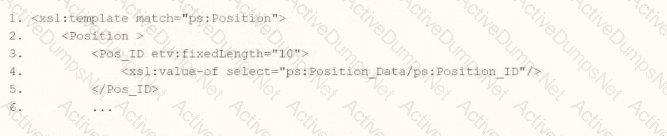
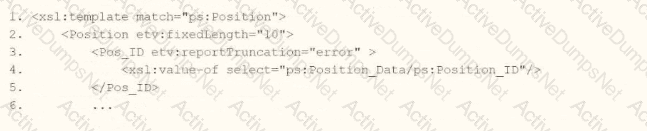
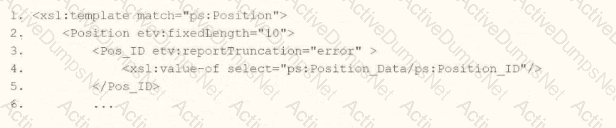
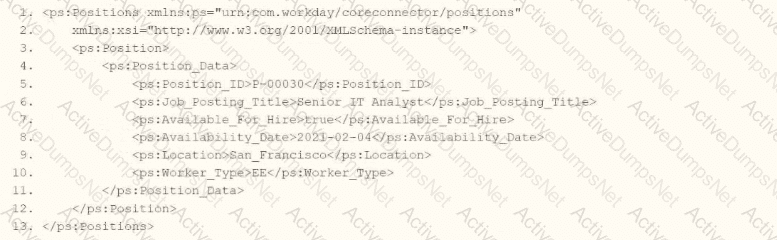
You need the integration file to format the ps:PositionJD field to 10 characters and report any truncated values as an error.
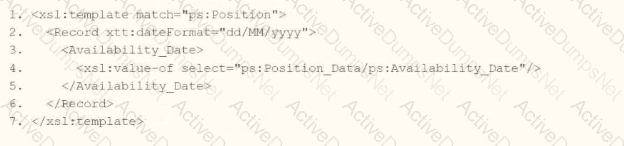
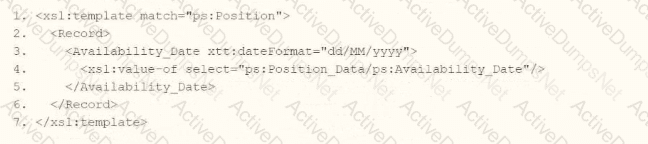
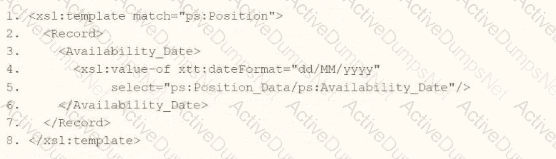
How will you start your template match on ps:Position to use Document Transformation (DT) to do the transformation using ETV with your truncation validation?


In Workday integrations, Document Transformation (DT) using XSLT is employed to transform XML data, such as the output from a Core Connector or EIB, into a specific format for third-party systems. In this scenario, you need to transform the ps:Position_ID field within the ps:Position element to a fixed length of 10 characters and report any truncation as an error using Workday’s Extension for Transformation and Validation (ETV) attributes. The template must match the ps:Position element and apply the specified formatting and validation rules.
Here’s why option D is correct:
Template Matching: The
ETV Attributes:
etv:fixedLength="10" specifies that the Pos_ID field should be formatted to a fixed length of 10 characters. This ensures the output is truncated or padded (if needed) to meet the length requirement.
etv:reportTruncation="error" instructs the transformation to raise an error if the ps:Position_ID value exceeds 10 characters and cannot be truncated without data loss, aligning with the requirement to report truncated values as errors.
XPath Selection: The
Output Structure: The
Why not the other options?
A.
xml
WrapCopy
This option includes etv:fixedLength="10" but omits etv:reportTruncation="error". Without the truncation reporting, it does not meet the requirement to report truncated values as errors, making it incorrect.
B.
xml
WrapCopy
This applies etv:fixedLength="10" to the Position element instead of Pos_ID, and etv:reportTruncation="error" to Pos_ID. However, ETV attributes like fixedLength and reportTruncation should be applied to the specific field being formatted (Pos_ID), not the parent element (Position). This misplacement makes it incorrect.
C.
xml
WrapCopy
Similar to option B, this applies etv:fixedLength="10" to Position and etv:reportTruncation="error" to Pos_ID, which is incorrect for the same reason: ETV attributes must be applied to the specific field (Pos_ID) requiring formatting and validation, not the parent element.
To implement this in XSLT for a Workday integration:
Use the template from option D to match ps:Position, apply etv:fixedLength="10" and etv:reportTruncation="error" to the Pos_ID element, and extract the ps:Position_ID value using the correct XPath. This ensures the ps:Position_ID (e.g., "P-00030") is formatted to 10 characters and reports any truncation as an error, meeting the integration file requirements.
Workday Pro Integrations Study Guide: Section on "Document Transformation (DT) and ETV" – Details the use of ETV attributes like fixedLength and reportTruncation for formatting and validating data in XSLT transformations.
Workday Core Connector and EIB Guide: Chapter on "XML Transformations" – Explains how to use XSLT templates to transform position data, including ETV attributes for length and truncation validation.
Workday Integration System Fundamentals: Section on "ETV in Integrations" – Covers the application of ETV attributes to specific fields in XML for integration outputs, ensuring compliance with formatting and error-reporting requirements.
You need to create a report that includes data from multiple business objects. For a supervisory organization specified at run time, the report must output one row per worker, their active benefit plans, and the names and ages of all related dependents. The Worker business object contains the Employee, Benefit Plans, and Dependents fields. The Dependent business object contains the employee's dependent's Name and Age fields.
How would you select the primary business object (PBO) and related business objects (RBO) for the report?
PBO: Dependent, RBO: Worker
PBO: Worker, RBO: Dependent
PBO: Dependent, no RBOs
PBO: Worker; no RBOs
In Workday reporting, selecting the appropriate Primary Business Object (PBO) and Related Business Objects (RBOs) is critical to ensure that the report retrieves and organizes data correctly based on the requirements. The requirement here is to create a report that outputs one row per worker for a specified supervisory organization, including their active benefit plans and the names and ages of all related dependents. The Worker business object contains fields like Employee, Benefit Plans, and Dependents, while the Dependent business object provides the Name and Age fields for dependents.
Why Worker as the PBO?The report needs to output "one row per worker," making the Worker business object the natural choice for the PBO. In Workday, the PBO defines the primary dataset and determines the granularity of the report (i.e., one row per instance of the PBO). Since the report revolves around workers and their associated data (benefit plans and dependents), Worker is the starting point. Additionally, the requirement specifies a supervisory organization at runtime, which is a filter applied to the Worker business object to limit the population.
Why Dependent as an RBO?The Worker business object includes a "Dependents" field, which is a multi-instance field linking to the Dependent business object. To access detailed dependent data (Name and Age), the Dependent business object must be added as an RBO. This allows the report to pull in the related dependent information for each worker. Without the Dependent RBO, the report could only reference the existence of dependents, not their specific attributes like Name and Age.
Analysis of Benefit Plans:The Worker business object already contains the "Benefit Plans" field, which provides access to active benefit plan data. Since this is a field directly available on the PBO (Worker), no additional RBO is needed to retrieve benefit plan information.
Option Analysis:
A. PBO: Dependent, RBO: Worker: Incorrect. If Dependent were the PBO, the report would output one row per dependent, not one row per worker, which contradicts the requirement. Additionally, Worker as an RBO would unnecessarily complicate accessing worker-level data.
B. PBO: Worker, RBO: Dependent: Correct. This aligns with the requirement: Worker as the PBO ensures one row per worker, and Dependent as the RBO provides access to dependent details (Name and Age). Benefit Plans are already accessible via the Worker PBO.
C. PBO: Dependent, no RBOs: Incorrect. This would result in one row per dependent and would not allow easy access to worker or benefit plan data, failing to meet the "one row per worker" requirement.
D. PBO: Worker, no RBOs: Incorrect. While Worker as the PBO is appropriate, omitting the Dependent RBO prevents the report from retrieving dependent Name and Age fields, which are stored in the Dependent business object, not directly on Worker.
Implementation:
Create a custom report with Worker as the PBO.
Add a filter for the supervisory organization (specified at runtime) on the Worker PBO.
Add Dependent as an RBO to access Name and Age fields.
Include columns from Worker (e.g., Employee, Benefit Plans) and Dependent (e.g., Name, Age).
References from Workday Pro Integrations Study Guide:
Workday Report Writer Fundamentals: Section on "Selecting Primary and Related Business Objects" explains how the PBO determines the report’s row structure and RBOs extend data access to related objects.
Integration System Fundamentals: Discusses how multi-instance fields (e.g., Dependents on Worker) require RBOs to retrieve detailed attributes.
What is the purpose of granting an ISU modify access to the Integration Event domain via an ISSG?
To have the ISU own the integration schedule.
To let the ISU configure integration attributes and maps.
To log into the user interface as the ISU and launch the integration.
To build the integration system as the ISU.
Understanding ISUs and Integration Systems in Workday
Integration System User (ISU): An ISU is a specialized user account in Workday designed for integrations, functioning as a service account to authenticate and execute integration processes. ISUs are created using the "Create Integration System User" task and are typically configured with settings like disabling UI sessions and setting long session timeouts (e.g., 0 minutes) to prevent expiration during automated processes. ISUs are not human users but are instead programmatic accounts used for API calls, EIBs, Core Connectors, or other integration mechanisms.
Integration Systems: In Workday, an "integration system" refers to the configuration or setup of an integration, such as an External Integration Business (EIB), Core Connector, or custom integration via web services. Integration systems are defined to handle data exchange between Workday and external systems, and they require authentication, often via an ISU, to execute tasks like data retrieval, transformation, or posting.
Assigning ISUs to Integration Systems: ISUs are used to authenticate and authorize integration systems to interact with Workday. When configuring an integration system, you assign an ISU to provide the credentials needed for the integration to run. This assignment ensures that the integration can access Workday data and functionalities based on the security permissions granted to the ISU via its associated Integration System Security Group (ISSG).
Limitation on Assignment: Workday’s security model imposes restrictions to maintain control and auditability. Specifically, an ISU is designed to be tied to a single integration system to ensure clear accountability, prevent conflicts, and simplify security management. This limitation prevents an ISU from being reused across multiple unrelated integration systems, reducing the risk of unintended access or data leakage.
Evaluating Each Option
Let’s assess each option based on Workday’s integration and security practices:
Option A: An ISU can be assigned to five integration systems.
Analysis: This is incorrect. Workday does not impose a specific numerical limit like "five" for ISU assignments to integration systems. Instead, the limitation is more restrictive: an ISU is typically assigned to only one integration system to ensure focused security and accountability. Allowing an ISU to serve multiple systems could lead to confusion, overlapping permissions, or security risks, which Workday’s design avoids.
Why It Doesn’t Fit: There’s no documentation or standard practice in Workday Pro Integrations suggesting a limit of five integration systems per ISU. This option is arbitrary and inconsistent with Workday’s security model.
Option B: An ISU can be assigned to an unlimited number of integration systems.
Analysis: This is incorrect. Workday’s security best practices do not allow an ISU to be assigned to an unlimited number of integration systems. Allowing this would create security vulnerabilities, as an ISU’s permissions (via its ISSG) could be applied across multiple unrelated systems, potentially leading to unauthorized access or data conflicts. Workday enforces a one-to-one or tightly controlled relationship to maintain auditability and security.
Why It Doesn’t Fit: The principle of least privilege and clear accountability in Workday integrations requires limiting an ISU’s scope, not allowing unlimited assignments.
Option C: An ISU can be assigned to only one integration system.
Analysis: This is correct. In Workday, an ISU is typically assigned to a single integration system to ensure that its credentials and permissions are tightly scoped. This aligns with Workday’s security model, where ISUs are created for specific integration purposes (e.g., an EIB, Core Connector, or web service integration). When configuring an integration system, you specify the ISU in the integration setup (e.g., under "Integration System Attributes" or "Authentication" settings), and it is not reused across multiple systems to prevent conflicts or unintended access. This limitation ensures traceability and security, as the ISU’s actions can be audited within the context of that single integration.
Why It Fits: Workday documentation and best practices, including training materials and community forums, emphasize that ISUs are dedicated to specific integrations. For example, when creating an EIB or Core Connector, you assign an ISU, and it is not shared across other integrations unless explicitly reconfigured, which is rare and discouraged for security reasons.
Option D: An ISU can only be assigned to an ISSG and not an integration system.
Analysis: This is incorrect. While ISUs are indeed assigned to ISSGs to inherit security permissions (as established in Question 26), they are also assigned to integration systems to provide authentication and authorization for executing integration tasks. The ISU’s role includes both: it belongs to an ISSG for permissions and is linked to an integration system for execution. Saying it can only be assigned to an ISSG and not an integration system misrepresents Workday’s design, as ISUs are explicitly configured in integration systems (e.g., EIB, Core Connector) to run processes.
Why It Doesn’t Fit: ISUs are integral to integration systems, providing credentials for API calls or data exchange. Excluding assignment to integration systems contradicts Workday’s integration framework.
Final Verification
The correct answer is Option C, as Workday limits an ISU to a single integration system to ensure security, accountability, and clarity in integration operations. This aligns with the principle of least privilege, where ISUs are scoped narrowly to avoid overexposure. For example, when setting up a Core Connector: Job Postings (as in Question 25), you assign an ISU specifically for that integration, not multiple ones, unless reconfiguring for a different purpose, which is atypical.
Supporting Documentation
The reasoning is based on Workday Pro Integrations security practices, including:
Workday Community documentation on creating and managing ISUs and integration systems.
Tutorials on configuring EIBs, Core Connectors, and web services, which show assigning ISUs to specific integrations (e.g., Workday Advanced Studio Tutorial).
Integration security overviews from implementation partners (e.g., NetIQ, Microsoft Learn, Reco.ai) emphasizing one ISU per integration for security.
Community discussions on Reddit and Workday forums reinforcing that ISUs are tied to single integrations for auditability (r/workday on Reddit).
This question focuses on the purpose of granting an Integration System User (ISU) modify access to the Integration Event domain via an Integration System Security Group (ISSG) in Workday Pro Integrations. Let’s analyze the role of the ISU, the Integration Event domain, and evaluate each option to determine the correct answer.
Understanding ISUs, ISSGs, and the Integration Event Domain
Integration System User (ISU): As described in previous questions, an ISU is a service account for integrations, used to authenticate and execute integration processes in Workday. ISUs are assigned to ISSGs to inherit security permissions and are linked to specific integration systems (e.g., EIBs, Core Connectors) for execution.
Integration System Security Group (ISSG): An ISSG is a security group that defines the permissions for ISUs, controlling what data and functionalities they can access or modify. ISSGs can be unconstrained (access all instances) or constrained (access specific instances based on context). Permissions are granted via domain security policies, such as "Get," "Put," "View," or "Modify," applied to Workday domains.
Integration Event Domain: In Workday, the Integration Event domain (or Integration Events security domain) governs access to integration-related activities, such as managing integration events, schedules, attributes, mappings, and logs. This domain is critical for integrations, as it controls the ability to create, modify, or view integration configurations and runtime events.
"Modify" access to the Integration Event domain allows the ISU to make changes to integration configurations, such as attributes (e.g., file names, endpoints), mappings (e.g., data transformations), and event settings (e.g., schedules or triggers).
This domain does not typically grant UI access or ownership of schedules but focuses on configuration and runtime control.
Purpose of Granting Modify Access: Granting an ISU modify access to the Integration Event domain via an ISSG enables the ISU to perform configuration tasks for integrations, ensuring the integration system can adapt or update its settings programmatically. This is essential for automated integrations that need to adjust mappings, attributes, or event triggers without manual intervention. However, ISUs are not designed for UI interaction or administrative ownership, as they are service accounts.
Evaluating Each Option
Let’s assess each option based on Workday’s security and integration model:
Option A: To have the ISU own the integration schedule.
Analysis: This is incorrect. ISUs do not "own" integration schedules or any other integration components. Ownership is not a concept applicable to ISUs, which are service accounts for execution, not administrative entities. Integration schedules are configured within the integration system (e.g., EIB or Core Connector) and managed by administrators or users with appropriate security roles, not by ISUs. Modify access to the Integration Event domain allows changes to schedules, but it doesn’t imply ownership.
Why It Doesn’t Fit: ISUs lack administrative control or ownership; they execute based on permissions, not manage schedules as owners. This misinterprets the ISU’s role.
Option B: To let the ISU configure integration attributes and maps.
Analysis: This is correct. Granting modify access to the Integration Event domain allows the ISU to alter integration configurations, including attributes (e.g., file names, endpoints, timeouts) and mappings (e.g., data transformations like worker subtype mappings from Question 25). The Integration Event domain governs these configuration elements, and "Modify" permission enables the ISU to update them programmatically during integration execution. This is a standard use case for ISUs in automated integrations, ensuring flexibility without manual intervention.
Why It Fits: Workday’s documentation and training materials indicate that the Integration Event domain controls integration configuration tasks. For example, in an EIB or Core Connector, an ISU with modify access can adjust mappings or attributes, as seen in tutorials on integration setup (Workday Advanced Studio Tutorial). This aligns with the ISU’s role as a service account for dynamic configuration.
Option C: To log into the user interface as the ISU and launch the integration.
Analysis: This is incorrect. ISUs are not intended for UI interaction. When creating an ISU, a best practice is to disable UI sessions (e.g., set "Allow UI Sessions" to "No") and configure a session timeout of 0 minutes to prevent expiration during automation. ISUs operate programmatically via APIs or integration systems, not through the Workday UI. Modify access to the Integration Event domain enables configuration changes, not UI login or manual launching.
Why It Doesn’t Fit: Logging into the UI contradicts ISU design, as they are service accounts, not user accounts. This option misrepresents their purpose.
Option D: To build the integration system as the ISU.
Analysis: This is incorrect. ISUs do not "build" integration systems; they execute or configure existing integrations based on permissions. Building an integration system (e.g., creating EIBs, Core Connectors, or web services) is an administrative task performed by users with appropriate security roles (e.g., Integration Build domain access), not ISUs. Modify access to the Integration Event domain allows configuration changes, not the creation or design of integration systems.
Why It Doesn’t Fit: ISUs lack the authority or capability to build integrations; they are for runtime execution and configuration, not development or design.
Final Verification
The correct answer is Option B, as granting an ISU modify access to the Integration Event domain via an ISSG enables it to configure integration attributes (e.g., file names, endpoints) and maps (e.g., data transformations), which are critical for dynamic integration operations. This aligns with Workday’s security model, where ISUs handle automated tasks within defined permissions, not UI interaction, ownership, or system building.
For example, in the Core Connector: Job Postings from Question 25, an ISU with modify access to Integration Event could update the filename pattern or worker subtype mappings, ensuring the integration adapts to vendor requirements without manual intervention. This is consistent with Workday’s design for integration automation.
Supporting Documentation
The reasoning is based on Workday Pro Integrations security practices, including:
Workday Community documentation on ISUs, ISSGs, and domain security (e.g., Integration Event domain permissions).
Tutorials on configuring EIBs and Core Connectors, showing ISUs modifying attributes and mappings (Workday Advanced Studio Tutorial).
Integration security overviews from implementation partners (e.g., NetIQ, Microsoft Learn, Reco.ai) detailing domain access for ISUs.
Community discussions on Reddit and Workday forums reinforcing ISU roles for configuration, not UI or ownership (r/workday on Reddit).
Refer to the following XML to answer the question below.
You are an integration developer and need to write X8LT to transform the output of an ElB which is using a web service enabled report to output position data along with hiring restrictions around skills. You currently have a template which matches on wd:Report Data/wd: Report .Entry for creating a record from each report entry.
Within the template which matches on wd:Report_Entry you would like to conditionally process the wd:Job_Skills element by using a series of
Assuming all jobs will have the wd:Job_Skills element, what XSLT syntax would be used to output the text HR Skills if the value of wd:Job_Skills contains the text HR and output NON-HR Skills if the value of wd:Job_Skills does not contain the text HR?


The task is to write XSLT within a template matching wd:Report_Data/wd:Report_Entry to categorize wd:Job_Skills data, outputting "HR Skills" if the value contains "HR" and "NON-HR Skills" if it does not, using a series of
Let’s analyze each option:
Option A:
xml
Issues:
The = operator checks for exact equality (e.g., wd:Job_Skills must be exactly "HR"), not substring presence, which contradicts the requirement to check if "HR" is contained within the value.
Verdict: Incorrect syntax and logic.
Option B:
xml
Issues:
Similar to A,
The
While contains() is correct for substring checking, the structure fails to meet the
Verdict: Incorrect structure despite using contains().
Option C:
xml
Analysis:
Uses
However, wd:Job_Skills='HR' tests for exact equality, not whether "HR" is contained within the value. For example, "HR Specialist" would fail this test, outputting "NON-HR Skills" incorrectly.
Verdict: Semantically incorrect due to exact matching instead of substring checking.
Option D:
xml
Analysis:
Correctly uses
The contains() function properly checks if "HR" is a substring within wd:Job_Skills (e.g., "HR Manager" or "Senior HR" returns true).
not(contains()) ensures the opposite condition, covering all cases (mutually exclusive).
Note: The closing tag is a typo in the option (should be ), but in context, it’s an obvious formatting error, not a substantive issue.
Verdict: Correct logic and syntax, making D the best answer.
Correct Implementation in Context:
xml
Example Input:
Example Input:
Workday Pro Integrations Study Guide: "Configure Integration System - TRANSFORMATION" section, detailing
Workday Documentation: "XSLT Transformations in Workday" under EIB, confirming wd: namespace usage and string functions.
W3C XSLT 1.0 Specification: Section 9.1, "Conditional Processing with
Workday Community: Examples of substring-based conditionals in XSLT for report transformations.
Refer to the following scenario to answer the question below.
You are implementing a Core Connector: Worker integration to send employee data to a third-party active employee directory. The external vendor requires the following:
The Employee's Active Directory User Principal Name.
A mapping from Worker Type values to external worker type codes.
A specific filename format that includes a timestamp and sequence number.
You also need to ensure the document transformation occurs before the file is delivered to the endpoint. The connector's output must be transformed before the file is delivered to the vendor.
What step must be taken to ensure this occurs correctly?
Schedule the Document Transformation connector to run after the Core Connector: Worker completes.
Configure the business process to run the Document Delivery Service before the Document Transformation step.
Configure the business process to run the Document Transformation step before the Document Delivery Service step.
Schedule the Document Transformation connector in a separate integration system from the business process delivery step.
The requirement states that the connector output must be transformed before the file is delivered to the endpoint. This means the Document Transformation step must run first, followed by the Document Delivery step.
In Workday, this is managed through the Business Process (BP) attached to the integration system.
From Workday documentation:
“To transform an integration file before delivery, configure the Business Process to run the Document Transformation step before the Document Delivery Service step.”
This ensures that:
The file is converted (via XSLT) to the correct format (e.g., CSV or flat XML)
Only the final, transformed file is sent to the endpoint
Why the others are incorrect:
A. Scheduling separately does not ensure correct sequence.
B. Delivery before transformation would send the wrong file.
D. A separate integration system is unnecessary and not best practice for chained transformations.
You need to filter a custom report to only show workers that have been terminated after a user-prompted date.
How do you combine conditions in the filter to meet this requirement?
Worker Status is equal to the value "Terminated" OR Termination Date is greater than a value retrieved from a prompt
Worker Status is equal to the value retrieved from a prompt AND Termination Date is less than a value retrieved from a prompt.
Worker Status is equal to the value retrieved from a prompt OR Termination Date is equal to a value retrieved from a prompt.
Worker Status is equal to the value "Terminated" AND Termination Date is greater than a value retrieved from a prompt.
The requirement is to filter a custom report to show only workers terminated after a user-prompted date. In Workday, filters are defined in the Filter tab of the custom report definition, and conditions can be combined using AND/OR logic to refine the dataset. Let’s analyze the requirement and options:
Key Conditions:
Workers must be terminated, so the "Worker Status" field must equal "Terminated."
The termination must occur after a user-specified date, so the "Termination Date" must be greater than the prompted value.
Both conditions must be true for a worker to appear in the report, requiring an AND combination.
Option Analysis:
A. Worker Status is equal to the value "Terminated" OR Termination Date is greater than a value retrieved from a prompt: Incorrect. Using OR means the report would include workers who are terminated (regardless of date) OR workers with a termination date after the prompt (even if not terminated), which doesn’t meet the strict requirement of terminated workers after a specific date.
B. Worker Status is equal to the value retrieved from a prompt AND Termination Date is less than a value retrieved from a prompt: Incorrect. Worker Status shouldn’t be a prompted value (it’s fixed as "Terminated"), and "less than" would show terminations before the date, not after.
C. Worker Status is equal to the value retrieved from a prompt OR Termination Date is equal to a value retrieved from a prompt: Incorrect. Worker Status shouldn’t be prompted, and "equal to" limits the filter to exact matches, not "after" the date. OR logic also broadens the scope incorrectly.
D. Worker Status is equal to the value "Terminated" AND Termination Date is greater than a value retrieved from a prompt: Correct. This ensures workers are terminated (fixed value) AND their termination date is after the user-entered date, precisely meeting the requirement.
Implementation:
In the custom report’s Filter tab, add two conditions:
Field: Worker Status, Operator: equals, Value: "Terminated".
Field: Termination Date, Operator: greater than, Value: Prompt for Date (configured as a report prompt).
Set the logical operator between conditions to AND.
Test with a sample date to verify only terminated workers after that date appear.
References from Workday Pro Integrations Study Guide:
Workday Report Writer Fundamentals: Section on "Creating and Managing Filters" details combining conditions with AND/OR logic and using prompts.
Integration System Fundamentals: Notes how filtered reports support integration data sources with dynamic user inputs.
What are the two valid data source options for an Outbound EIB?
Web Service or Business Process
XpressO Report or Custom Report
Custom Report or Business Process
Custom Report or Workday Web Service
An Outbound EIB (Enterprise Interface Builder) requires a data source to extract information from Workday. The two valid data source types are:
Custom Report (Advanced or Simple)
Workday Web Service (WWS)
From Workday documentation:
“Outbound EIBs support either a Custom Report marked as Web Service Enabled, or a Workday Public Web Service (WWS) operation, as the data source.”
Custom Reports allow user-defined data with filtering.
Web Services allow access to standard operations like Get_Workers.
Why the other options are incorrect:
A. Business Process is not a data source type.
B. XpressO Reports are not supported for integrations.
C. Business Processes cannot feed EIBs directly as data sources.
You have been asked to create an integration using the Core Connector: Worker with DIS template. The vendor has requested that you only include employees who are based in the San Francisco area that are on leave.
How do you configure your integration so that only workers who meet the requirements are included in the output file?
Configure a Boolean field for San Francisco workers on leave in the field overrides.
Configure a Boolean field for Population Eligibility for San Francisco workers on leave.
Configure the integration attributes to include workers in San Francisco on leave.
Configure a Boolean field for San Francisco workers on leave under the field attributes.
When using Core Connector: Worker with DIS, to restrict the population to employees who:
Are on leave, and
Are located in San Francisco
You must configure Population Eligibility, which is the only place to filter the worker population included in the connector output.
From Workday Pro documentation:
“The Population Eligibility section defines which workers are eligible for extraction in the integration based on location, status, organization, and other conditions. Boolean calculated fields can be used here to define complex eligibility criteria.”
In this case:
Create a Boolean calculated field that returns true for “On Leave AND Location = San Francisco”
Use that field in Population Eligibility
Why the others are incorrect:
A, D. Field Overrides and Field Attributes only modify what data is extracted—not who is included.
C. Integration Attributes don’t control population filtering.
What is a key function and primary benefit of using a Document Transformation Connector within the integration capabilities of Workday?
It provides functionality for defining a business process to manage both the connector integrations and document transformations output files.
It enables the application of intricate calculations on Workday data before it is extracted by other integration tools for external transmission.
It plays a crucial role in converting the XML outputs generated by connector integrations into diverse formats and allows for data formatting and validation.
It serves as the principal tool for establishing and maintaining secure connections of connector integrations with various external systems.
The Document Transformation Connector is used in Workday to process and reformat XML outputs — often from Core Connector or EIB integrations — into custom formats like CSV, JSON, or flattened XML.
“The primary role of the Document Transformation Connector is to apply XSLT-based formatting, data reorganization, and validation to the output of Workday integrations before delivery to downstream systems.”
This is especially useful when third-party vendors require a specific format not natively supported by the integration system.
Why the other options are incorrect:
A. Managing business processes is not a DT Connector’s function.
B. Calculations are not the main purpose — that’s more for Calculated Fields or Studio.
D. While security is essential, secure connections are managed through Workday’s integration system and transport configuration, not the DT connector.
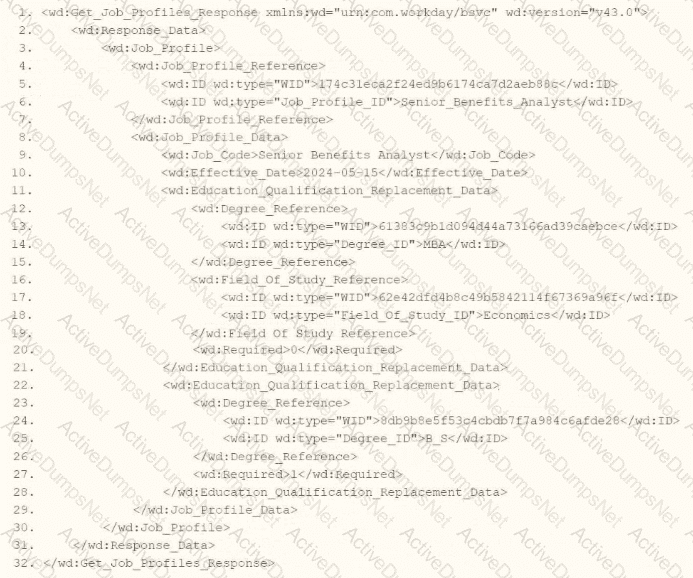
Refer to the following XML to answer the question below.
Within the template which matches on wd:Report_Entry, you would like to conditionally process the wd:Education_Group elements by using an
wd:Education_Group[wd:Degree='MBA']
wd:Education_Group/wd:Degree='MBA'
wd:Report_Entry/wd:Education_Group/ wd:Degree='MBA' 1:Degree='MBA'
wd:Report_Entry/wd:Education_Group[wd:Degree='MBA' 1:Degree='MBA']
In Workday integrations, XSLT is used to transform XML data, such as the output from a web service-enabled report or EIB, into a desired format for third-party systems. In this scenario, you need to write XSLT to process wd:Education_Group elements within a template matching wd:Report_Entry, using an
Here’s why option A is correct:
XPath Syntax Explanation: In XPath, square brackets [ ] are used to specify predicates or conditions to filter elements. The condition wd:Degree='MBA' checks if the wd:Degree child element has the value "MBA." When applied to wd:Education_Group, the expression wd:Education_Group[wd:Degree='MBA'] selects only those wd:Education_Group elements that contain a wd:Degree child element with the value "MBA."
Context in XSLT: Within an
XML Structure Alignment: Based on the provided XML snippet, wd:Education_Group contains wd:Education and wd:Degree child elements (e.g.,
Why not the other options?
B. wd:Education_Group/wd:Degree='MBA': This is not a valid XPath expression for a predicate. It attempts to navigate to wd:Degree as a child but does not use square brackets [ ] to create a filtering condition. This would be interpreted as selecting wd:Degree elements under wd:Education_Group, but it wouldn’t filter based on the value "MBA" correctly within an
C. wd:Report_Entry/wd:Education_Group/wd:Degree='MBA' 1:Degree='MBA': This is syntactically incorrect and unclear. It includes a malformed condition (1:Degree='MBA') and does not use proper XPath predicate syntax. It fails to filter wd:Education_Group elements based on wd:Degree='MBA' and is not valid for use in select.
D. wd:Report_Entry/wd:Education_Group[wd:Degree='MBA' 1:Degree='MBA']: This is also syntactically incorrect due to the inclusion of 1:Degree='MBA' within the predicate. The 1: prefix is not valid XPath syntax and introduces an error. The correct predicate should only be wd:Degree='MBA' to filter the wd:Education_Group elements.
To implement this in XSLT:
Within your template matching wd:Report_Entry, you would write an
This approach ensures the XSLT transformation aligns with Workday’s XML structure and integration requirements for processing education data in a report output.
Workday Pro Integrations Study Guide: Section on "XSLT Transformations for Workday Integrations" – Details the use of XPath in XSLT for filtering XML elements, including predicates for conditional processing based on child element values.
Workday EIB and Web Services Guide: Chapter on "XML and XSLT for Report Data" – Explains the structure of Workday XML (e.g., wd:Education_Group, wd:Degree) and how to use XPath to navigate and filter data.
Workday Reporting and Analytics Guide: Section on "Web Service-Enabled Reports" – Covers integrating report outputs with XSLT for transformations, including examples of filtering elements based on specific values like degree types.